

Overview
The Beacon endpoint dashboard is a local-only, read-only UI for inspecting the runtime JSONL log. Use it after health checks and validation events to confirm that local events are visible to an analyst. This guide shows how to open the dashboard, write a known event, verify Log Search, and review Security Overview.Setup
Confirm endpoint health and write a validation event:Prepare dashboard test data
1. Open The Dashboard
Start the dashboard and open it in your browser:Open the local dashboard
Sample output
Sample output
Sample output
Use a custom dashboard address
Read a specific runtime log
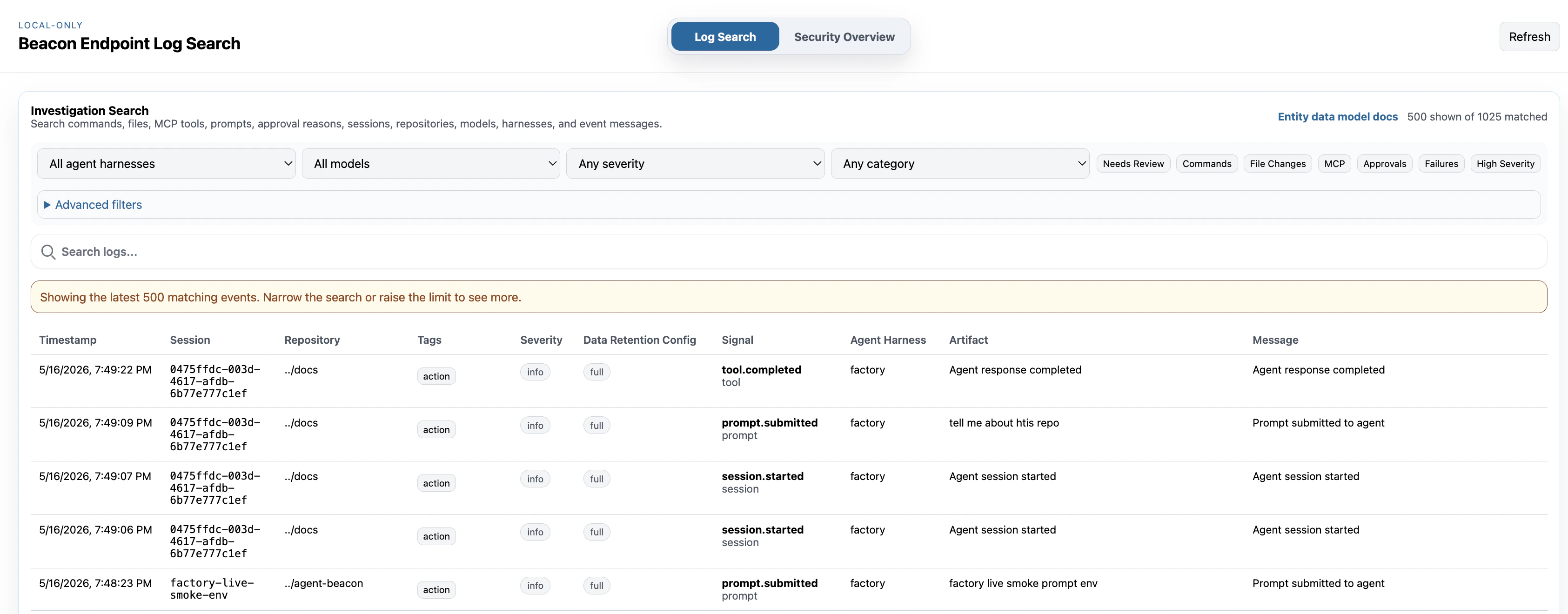
2. Test Log Search
Write a validation event, then open Log Search and confirm the event appears in the table.Create data for Log Search
3. Test Security Overview
Open Security Overview after writing test events or generating local agent activity. Confirm the summary cards and inventory panels reflect the local runtime log you are testing.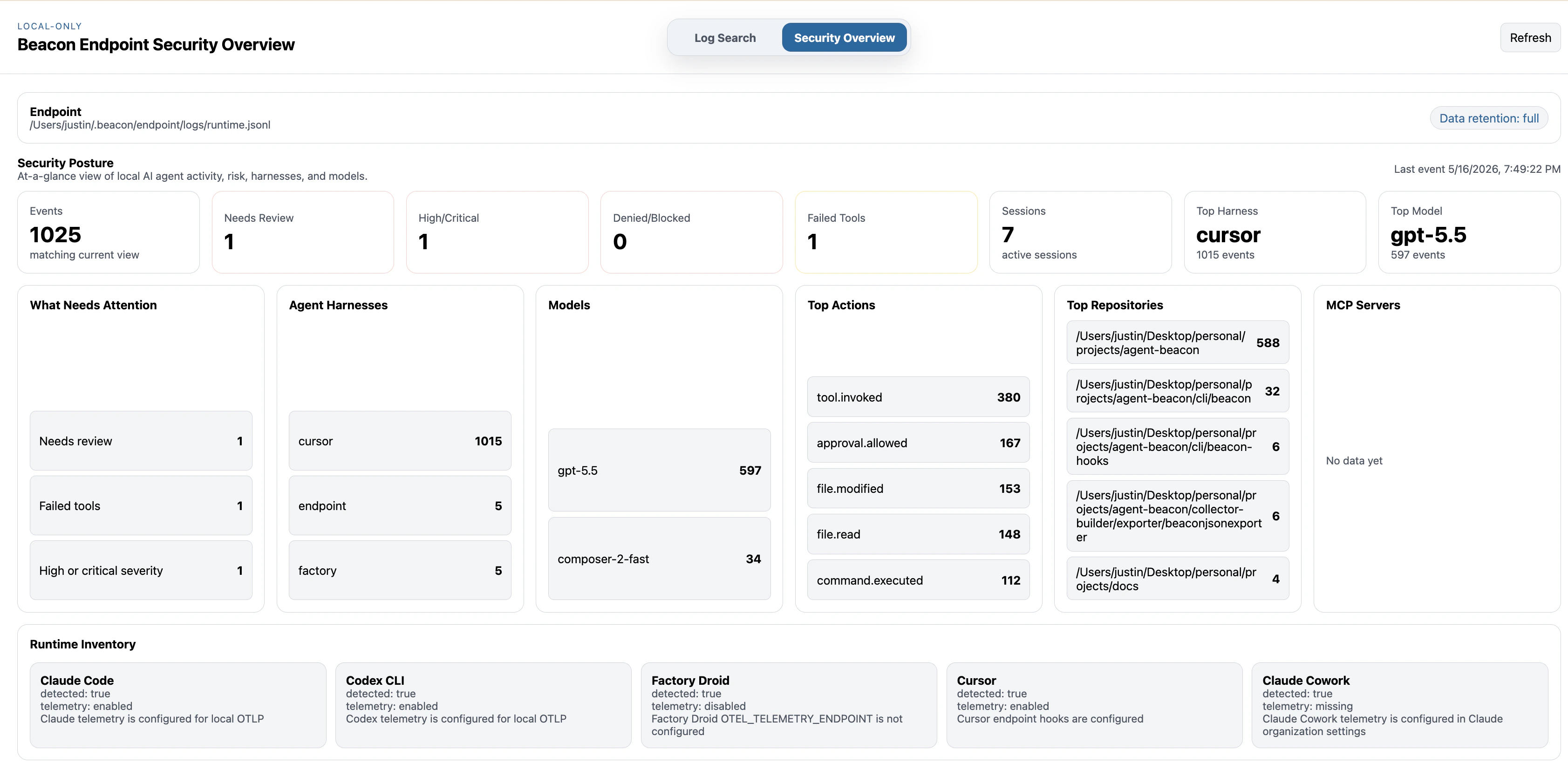
Key Features Demonstrated
- Dashboard startup against the expected runtime log.
- Log Search visibility for a controlled validation event.
- Security Overview summaries for local runtime activity.
- Loopback-only inspection without a hosted Beacon account.
Troubleshooting
If the dashboard opens but does not show expected events, check:- The runtime log path shown by
beacon endpoint status. - Whether the validation event was written with
beacon endpoint test-event. - Whether you are testing user mode or system mode.
- Whether
--log-pathpoints at the same file you validated. - Whether the expected event is in the active log or one of the numbered archives next to it.
Related
beacon endpoint dashboard
Review all dashboard flags and command examples.
Write Validation Events
Write a synthetic event before testing dashboard visibility.
Run Endpoint Health Checks
Confirm endpoint readiness before opening the dashboard.
Inspect Runtime Logs
Confirm the dashboard is reading the intended runtime JSONL log.